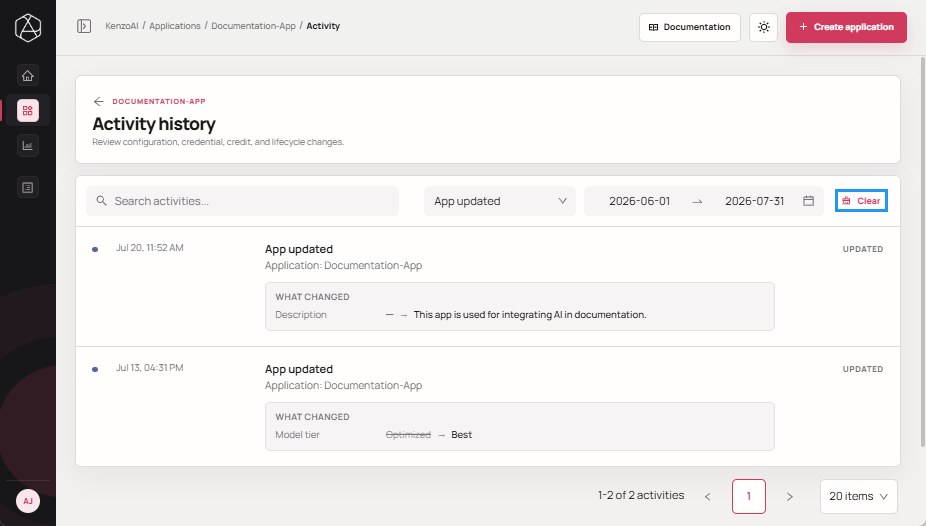
View Application Activity
The Application Activity view provides a centralized audit trail of actions and usage-related events for an application. It enables administrators, platform owners, and security teams to monitor changes, investigate issues, and support governance, security, and compliance requirements.
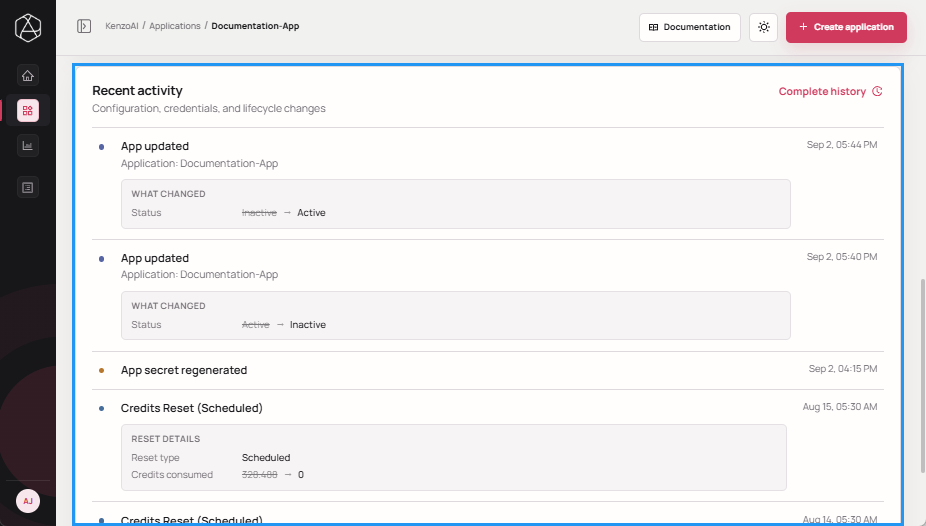
Recent Activity is displayed directly below the application details, with the option to open the full activity log for deeper analysis.
Access Application Activity
-
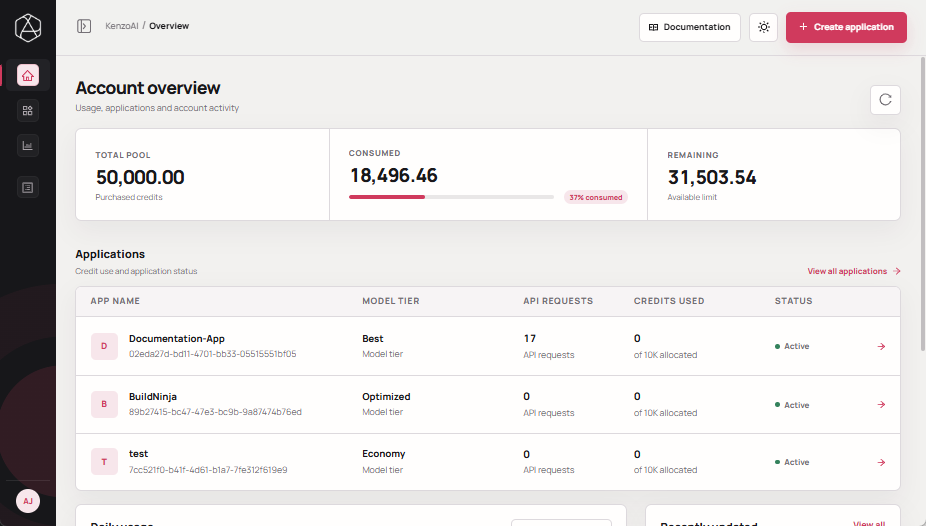
Open kenzoAI Overview.
-
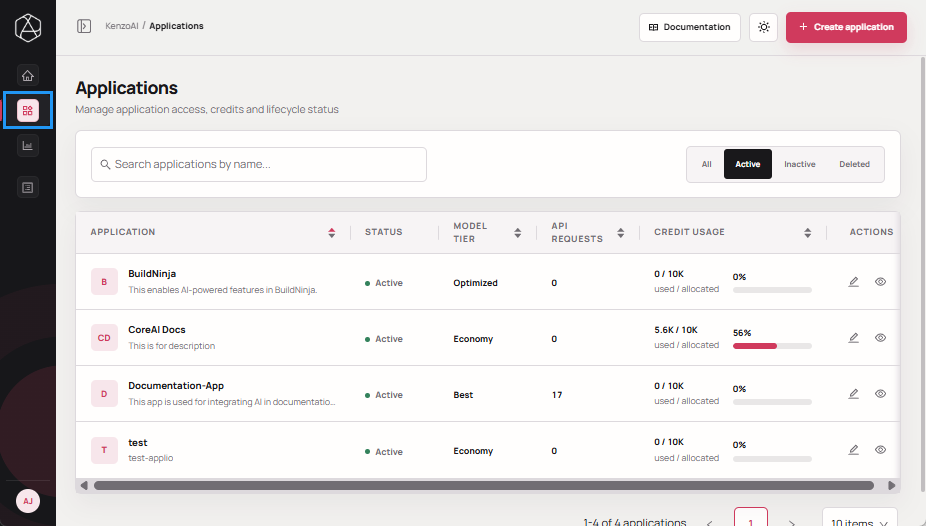
Navigate to Applications.
-
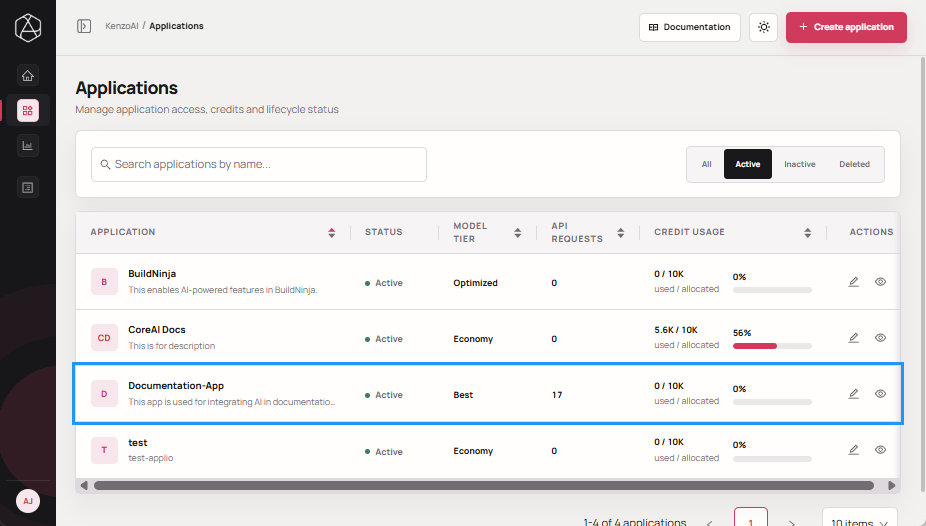
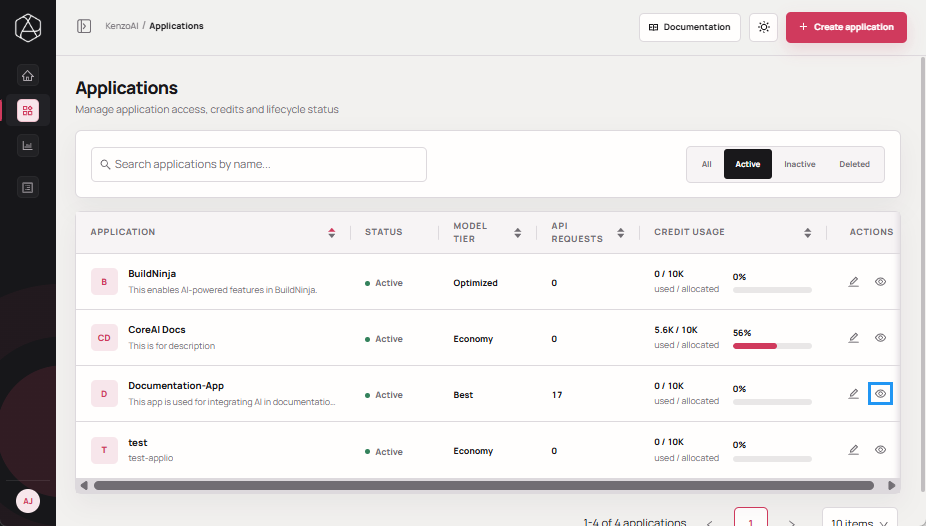
Open the Application Overview using one of the following methods:
-
Click the application.
-
Click View details in the Actions column.
-
-
Review Recent activity below the application details, or click Complete history to open the complete activity log.
Search and Filter Activity
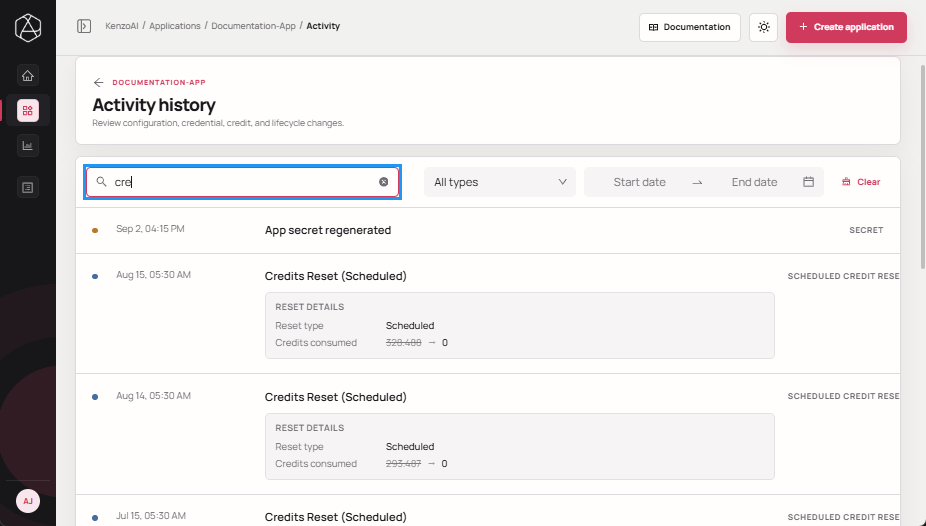
Search bar and Filter options allow you to quickly locate and refine activity records within the application activity log. These options help you find configuration updates, credential rotations, and other operational changes associated with an application, making it easier to perform audits, troubleshoot issues, and review application activity efficiently. You can also use the Clear option to reset the current search query and filters, restoring the default activity log view.
Search Activity
-
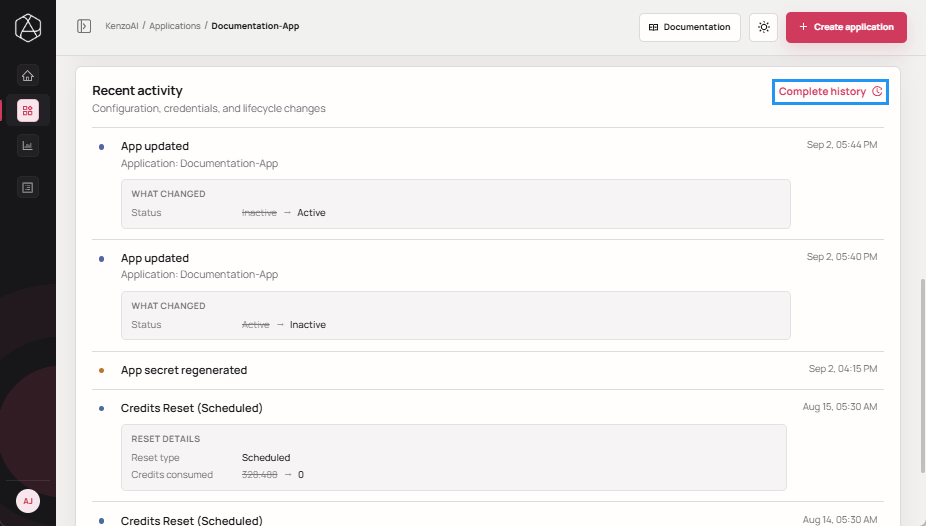
Click Complete history to open the complete activity log.
-
Enter keywords in the Search bar to find relevant actions or changes.
Filter Activity by Activity Type
-
Click Complete history to open the complete activity log.
-
Open the Activity Type filter.
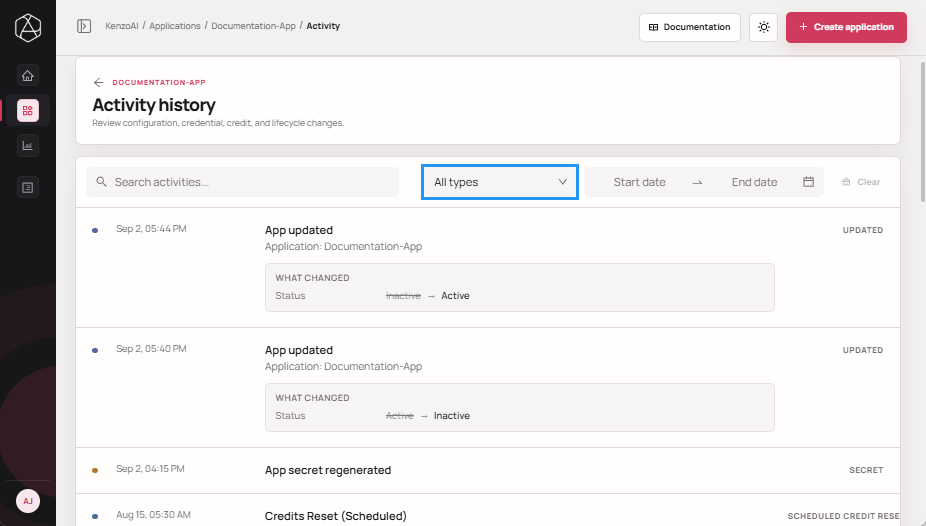
-
Select one of the following options to narrow the activity results:
- All Types
- App updated
- App secret regenerated
- Credits Reset (Scheduled)
- Credits Reset (Manual)
- App created
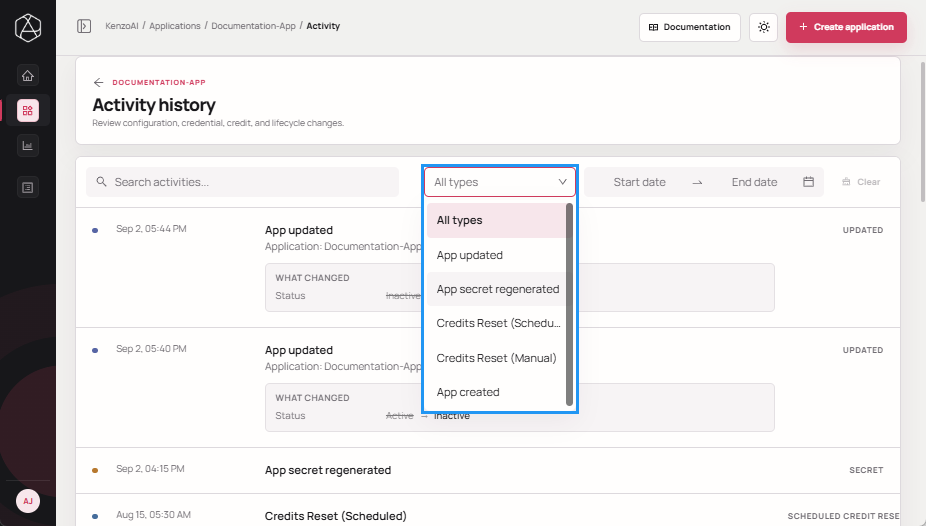
-
Review the updated activity list based on the selected event type.
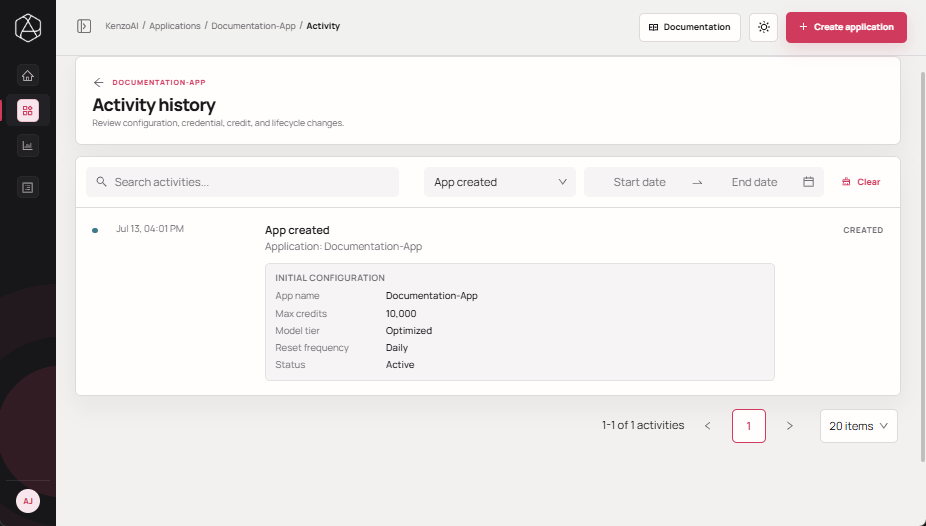
Filter Activity by Date Range
-
Click Complete history to open the complete activity log.
-
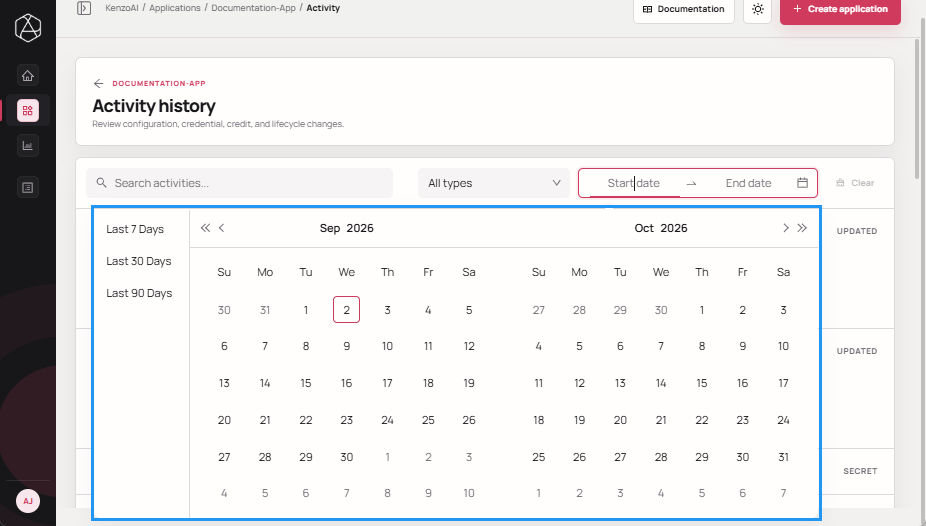
Open the Date Range selector.
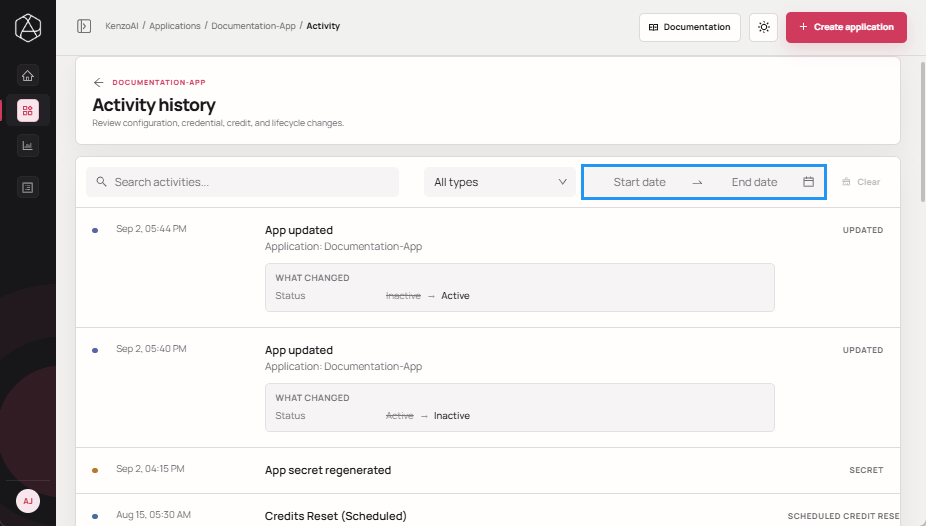
-
Choose the required Start and End dates, or use quick range options such as the last 7, 30, or 90 days to define the time window.
-
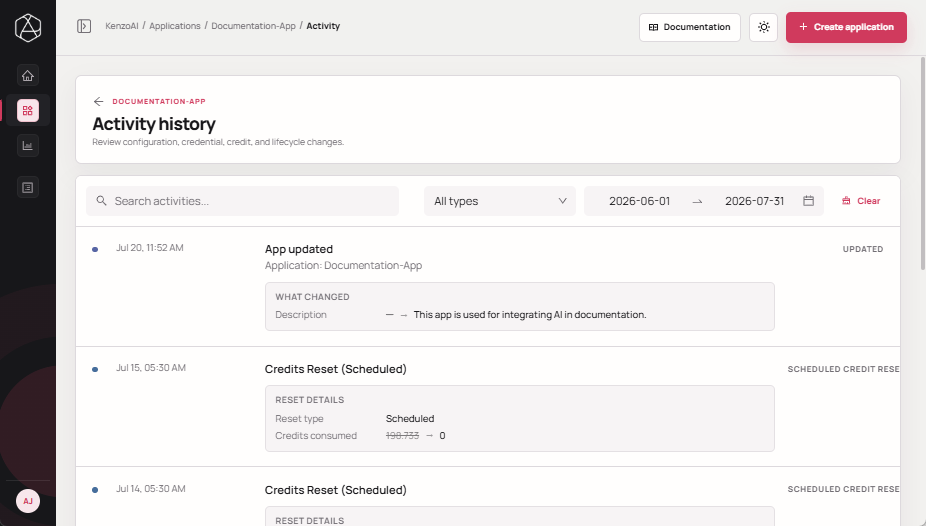
Review activities generated within the selected time window.
Clear Search and Filters
-
Click Clear to clear the current search query and filters, and restore the default activity log view.