Edit Application
Editing an application allows you to update application metadata, ensuring accurate governance, reliable usage tracking, and continued alignment with evolving project requirements.
Edit Application from Applications List
-
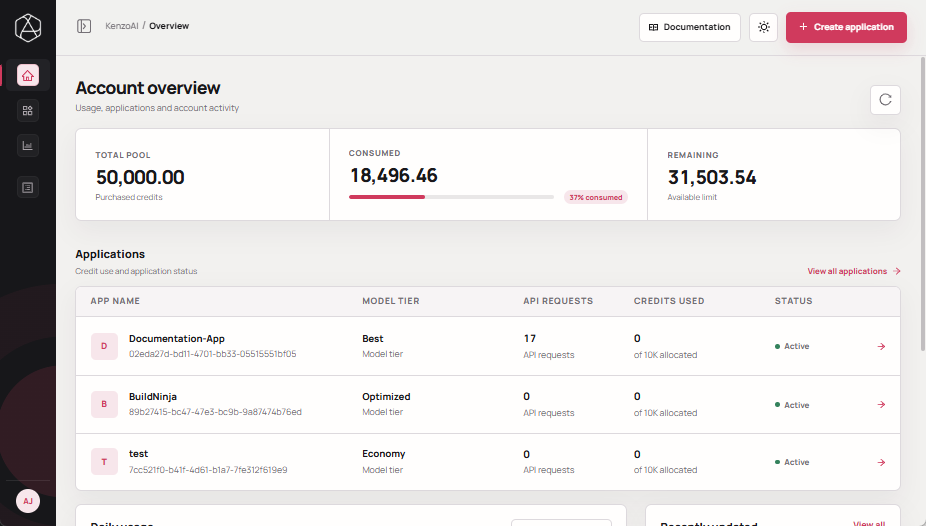
Open kenzoAI Overview.
-
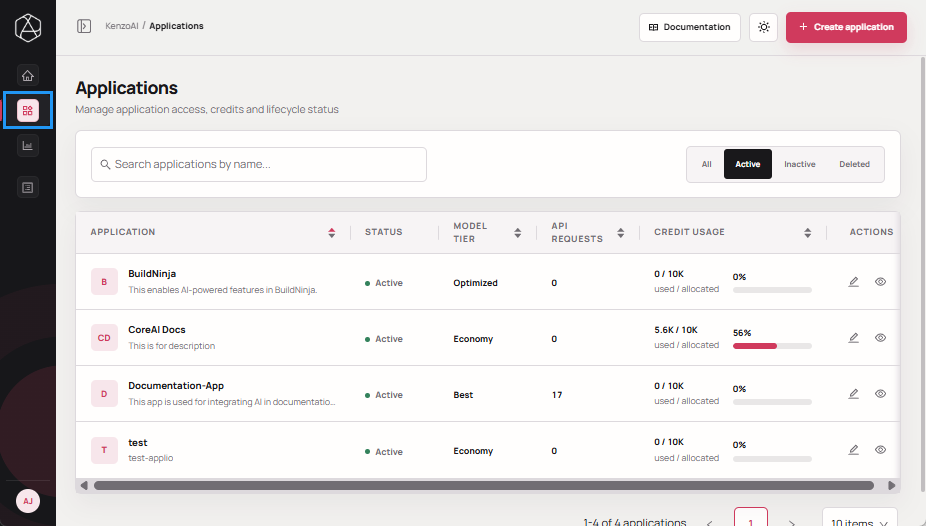
Navigate to Applications.
-
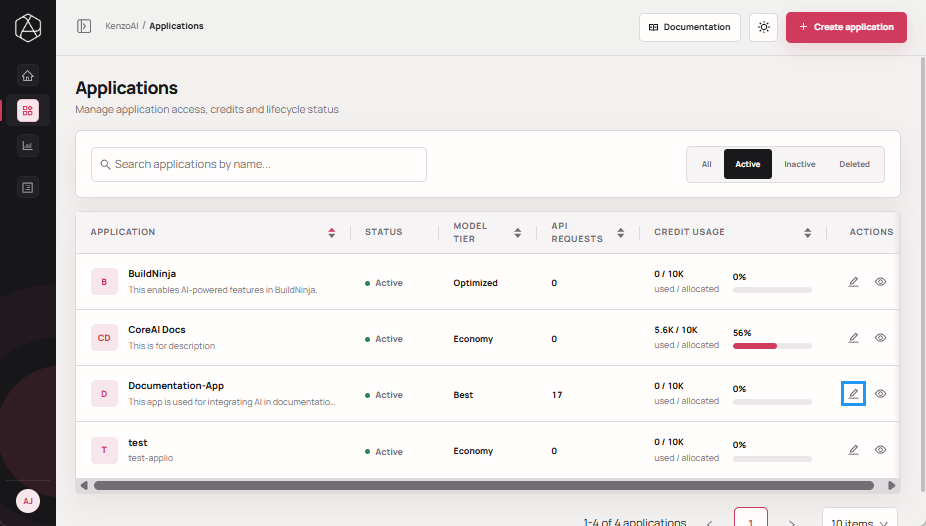
Locate the application you want to edit, and click Edit app.
-
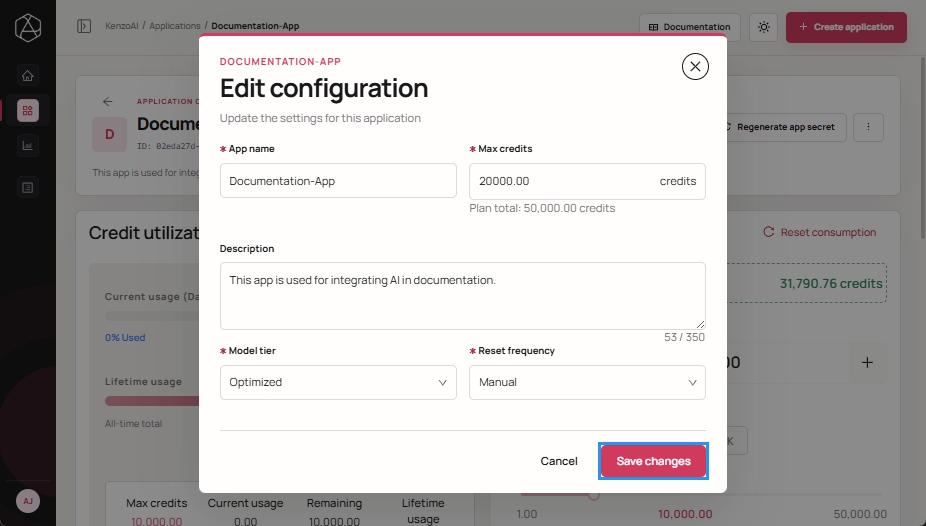
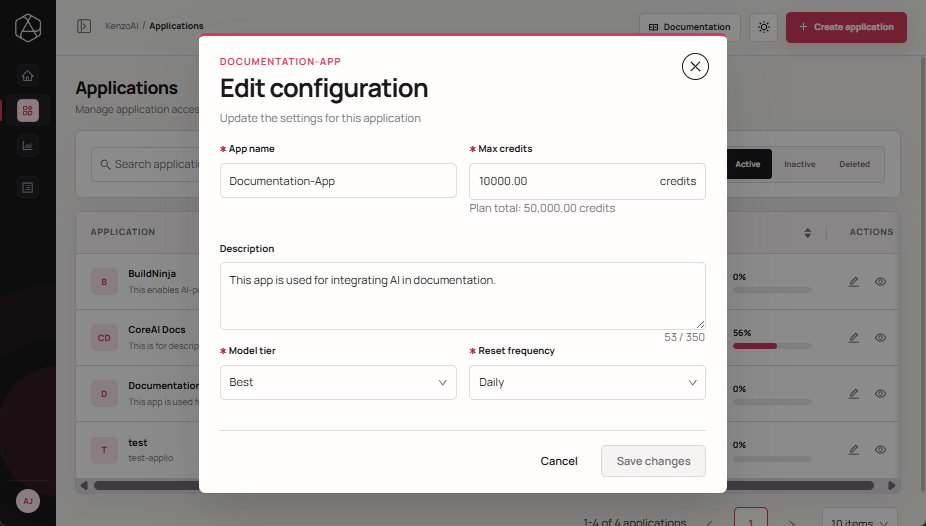
Update any of the following fields, as required:
- App name: A human-readable name to identify the application or integration (for example, BuildNinja Prod, CI Insights Service). This name is used for reference in overview, logs, and usage analytics.
- Max credits: The maximum number of credits the application is allowed to consume within a reset cycle.
- Description: A brief summary of the app’s purpose or use case. Descriptions help distinguish between multiple apps and provide context for usage and access reviews.
- Model tier: Select the AI capability tier used by the application.
- Economy: Designed for lightweight analysis and cost efficiency.
- Optimized: A balance of performance, accuracy, and cost.
- Best: Highest accuracy and reasoning depth for complex analysis.
- Reset frequency: Defines how often the application's Consumed Credits are reset, allowing the application to consume credits again up to its configured Max Credits limit.
- Manual: Consumed credits are reset only when you manually perform the Reset Consumption action. For more information, see Reset ConsumptionResetting consumption clears the recorded consumed credits for an application without deleting the application or changing its credentials..
- Daily: Resets every 24 hours.
- Weekly: Resets once per week.
- Monthly: Resets once per month.
 important
Resetting the consumed credits only resets the application's consumption quota based on the configured reset frequency. It does not restore or refund credits already deducted from the account-level credit pool or increase the application's Max Credits limit.
-
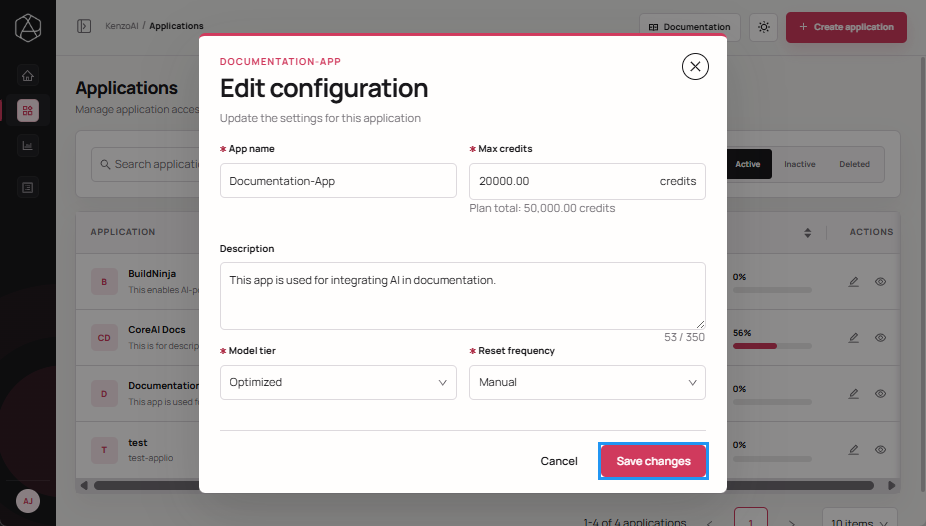
Click Save changes to apply the changes.
Edit Application from Application Overview
-
Open kenzoAI Overview.
-
Navigate to Applications.
-
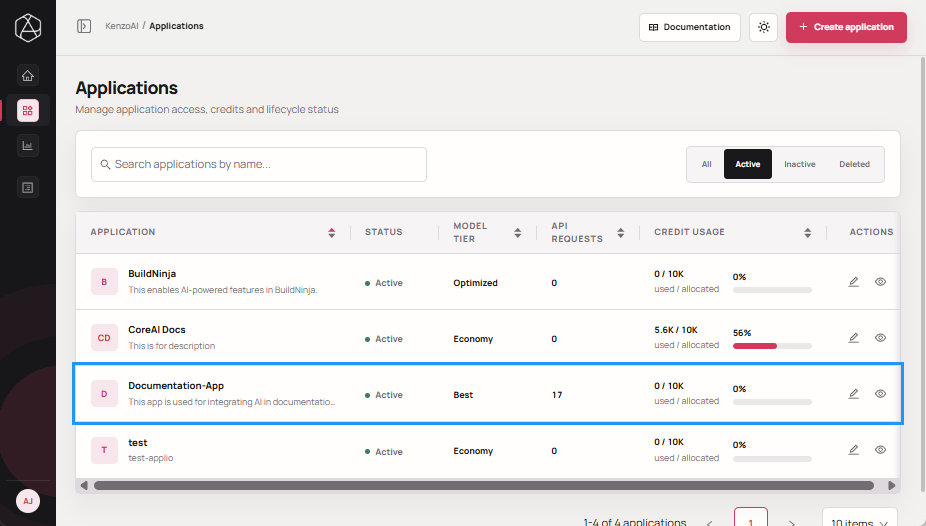
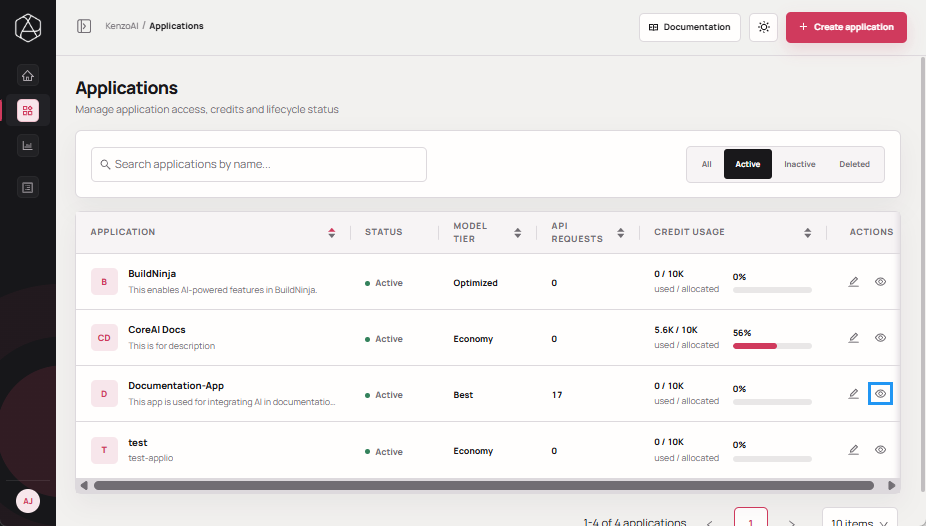
Open the Application Overview using one of the following methods:
-
Click the application.
-
Click View details in the Actions column.
-
-
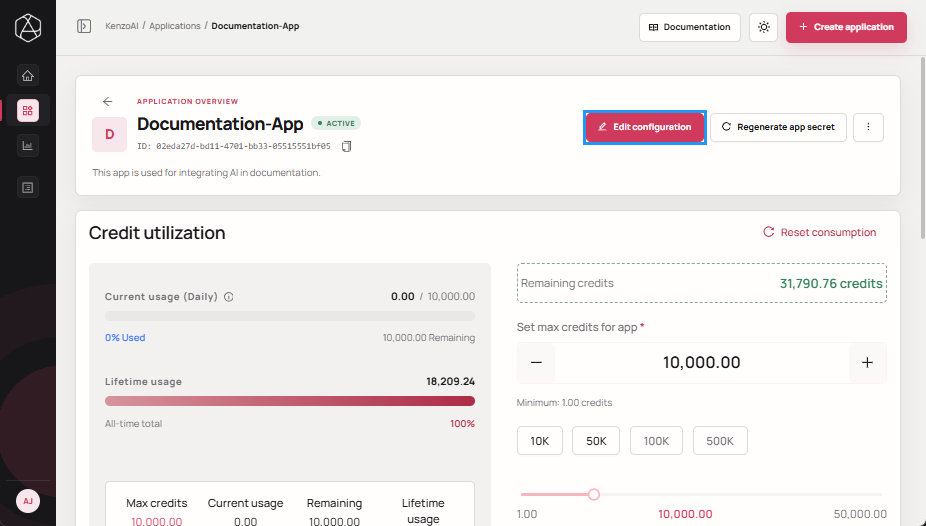
Click Edit configuration.
-
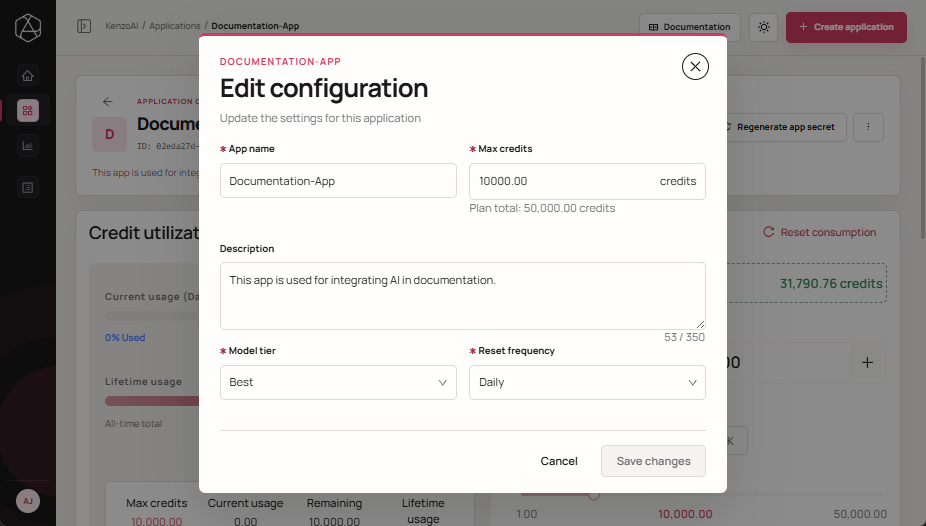
Update any of the following fields, as required:
- App name
- Max credits
- Description
- Model tier
- Reset frequency
-
Click Save changes to apply the changes.