Disable or Enable Application
Disabling an application immediately stops it from accessing kenzoAI services and consuming credits, without deleting the application or its configuration. This action is typically used to pause usage during maintenance windows, security investigations, policy enforcement, or temporary decommissioning.
Once an application is disabled, all subsequent API requests are rejected. Requests that were already received and successfully authenticated at the time of disabling continue to process and complete normally. Each turn within a session is treated as a separate request; disabling an application during an active session prevents any further AI responses in that session while allowing the in-flight request to finish.
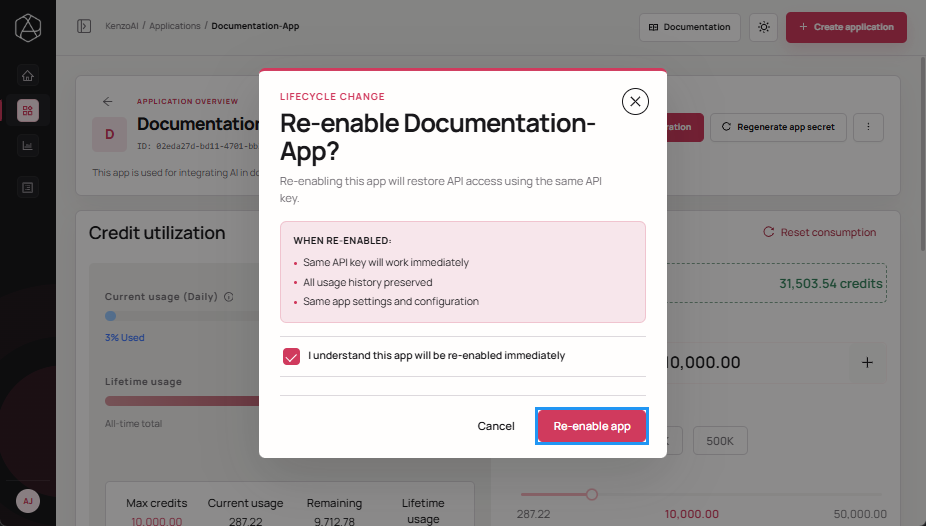
Re-enabling an application restores authentication and allows the application to resume consuming credits in accordance with its configured limits.
Application credentials and configuration remain unchanged while the application is disabled.
Disable Application
-
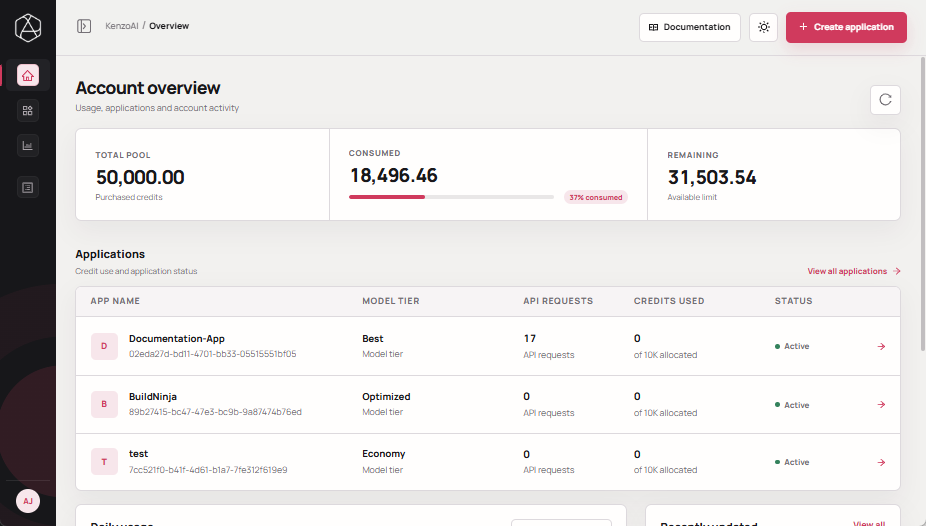
Open kenzoAI Overview.
-
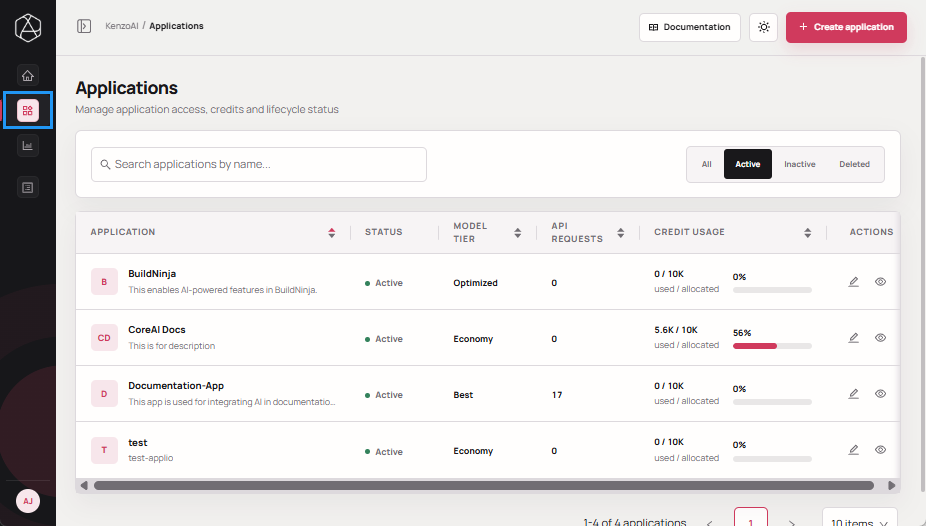
Navigate to Applications.
-
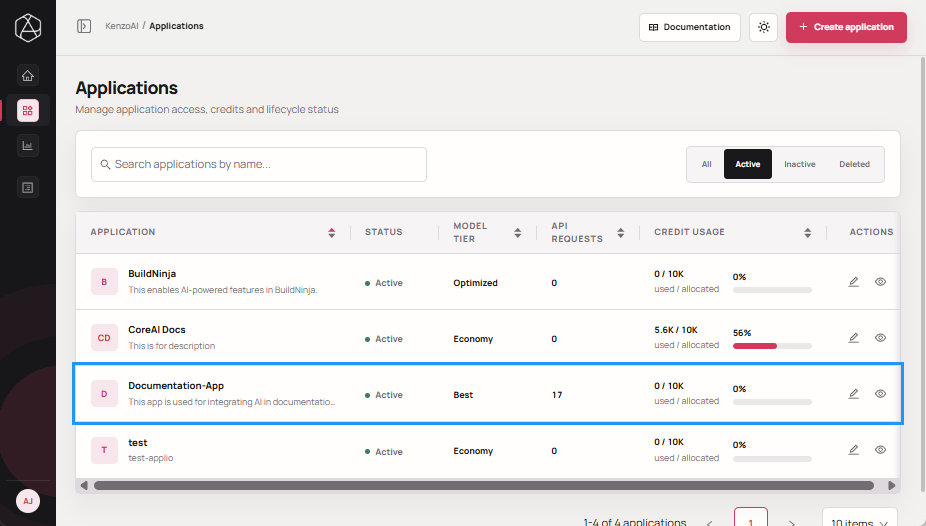
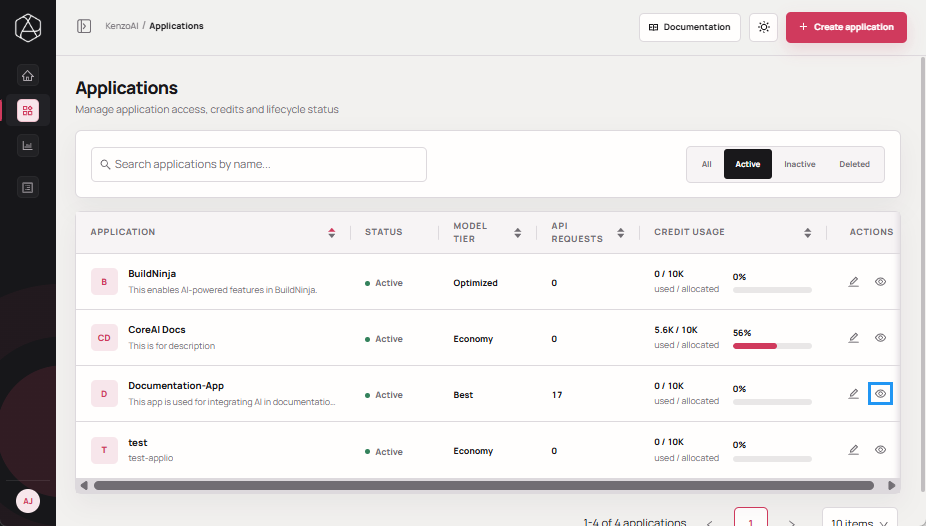
Open the Application Overview using one of the following methods:
-
Click the application.
-
Click View details in the Actions column.
-
-
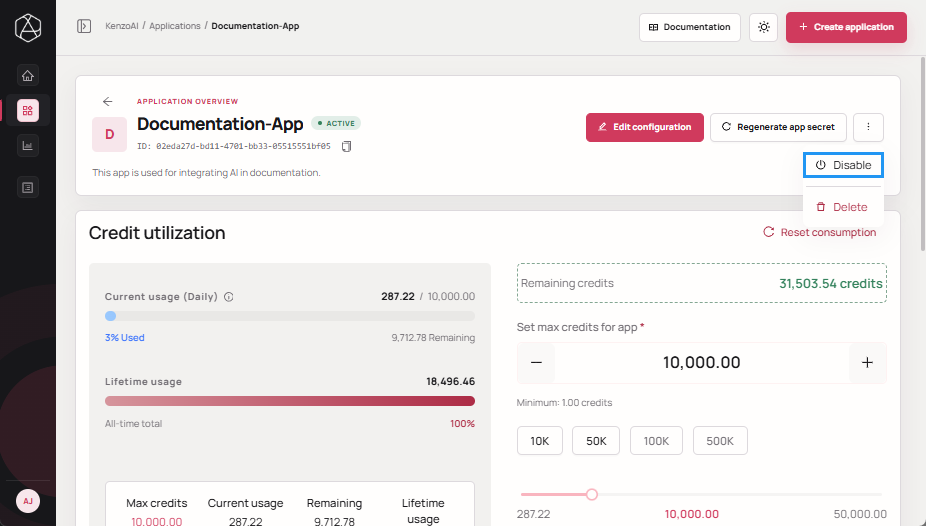
Click Ellipsis, then click Disable.
-
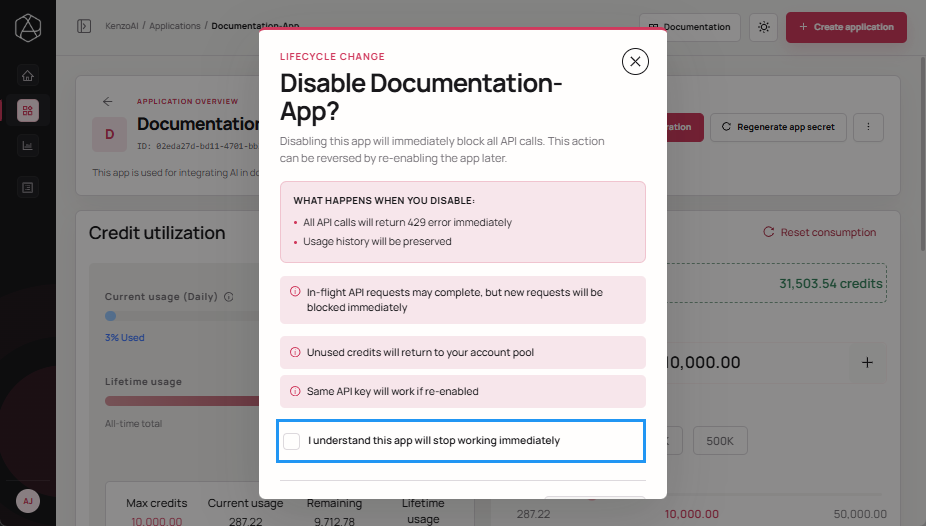
Review the confirmation note and select the acknowledgment checkbox.
-
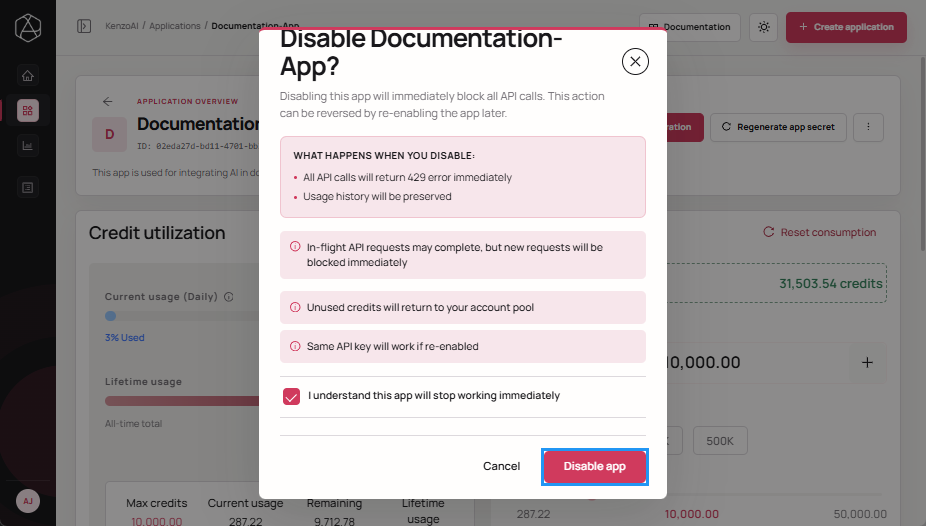
Click Disable app to confirm the action.
Enable Application
-
Open the Application Overview.
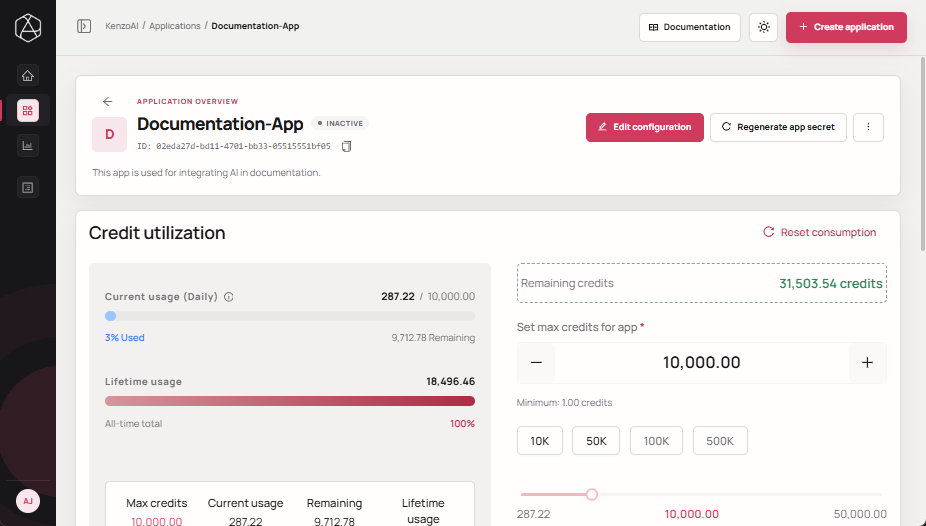
-
Click Ellipsis, then click Enable.
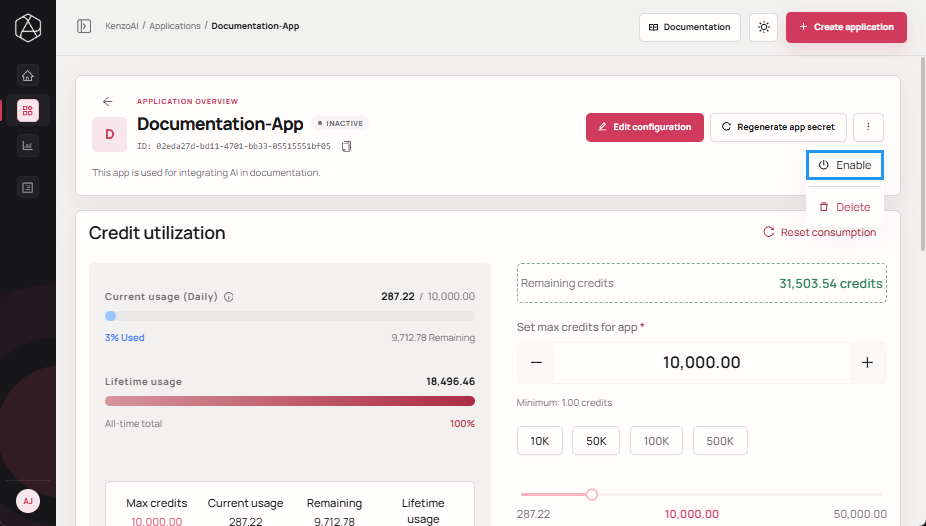
-
Review the confirmation note and select the acknowledgment checkbox.
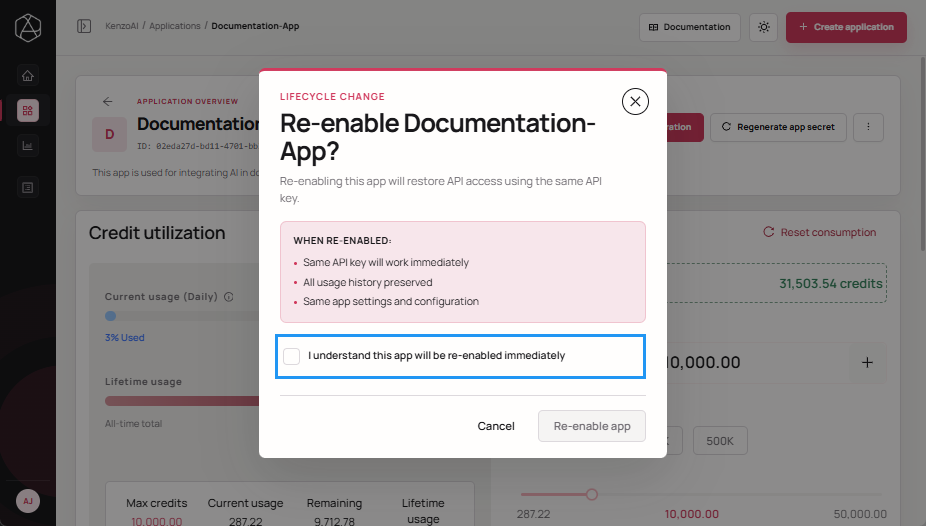
-
Click Re-enable app to confirm the action.