Getting Started with kenzoAI
To start using kenzoAI, you'll need to meet the prerequisites, get credits, and create an application to obtain the App Key and App Secret required to authenticate your integrations.
If you're new to kenzoAI, see the OverviewkenzoAI is an AI-powered developer intelligence platform that embeds LLM-driven insights directly into the software development lifecycle. to learn about its capabilities and how it supports software development workflows. For information about credits and model tiers, see the Platform ModelkenzoAI is a multi-tenant, AI service layer designed to integrate intelligence capabilities into existing systems. kenzoAI functions as the AI service layer, while all configuration, access, and monitoring activities are….
Prerequisites
kenzoAI is a cloud-hosted service and does not require any local installation. Before you begin, make sure you have:
- A modern web browser, such as Google Chrome, Microsoft Edge, Mozilla Firefox, or Safari, and a stable internet connection.
- An active GrapeHub account. GrapeHub is used to manage credits and billing associated with kenzoAI. If you don't have one yet, you can sign up from the GrapeHub login page.
Get kenzoAI Credits
kenzoAI uses a credit-based usage model with a single shared credit balance. There are no named plans, subscription tiers, recurring kenzoAI subscriptions, or per-seat AI fees. Credits can be used across kenzoAI capabilities, including failure forecasting, log analysis, configuration explanation, and AI-powered interactions.
New eligible GrapeHub customer accounts receive a one-time free signup allowance of kenzoAI Credits. For more information, see Free Tier and Credit Grant.
After claiming the free credit grant, you can purchase additional prepaid credit packs from the BuildNinja Pricing page based on your usage requirements. Available kenzoAI credit packs are:
- 2.5M credits
- 7M credits
- 15M credits
To purchase credits:
- Go to the BuildNinja Pricing page.
- Select the kenzoAI credit pack that matches your expected usage.
- Complete the purchase. After the purchase is completed, the credits are added to your existing kenzoAI credits balance and can be used across supported kenzoAI capabilities and model tiers.
Credits are consumed based on interaction volume, model usage, and analysis scope. Actual consumption depends on how kenzoAI is used.
If your account has accumulated overage credits, those credits are adjusted against the credits in a newly purchased credit pack. For more information, see Overage Credits Behavior.
Create Application
An Application in kenzoAI is a logical unit that defines how AI usage is authenticated, tracked, and governed. Each application maintains its credentials, usage metrics, configurable credit limits, reset frequency, and application activity, enabling organizations to control access, isolate usage, and manage costs at the integration level.
When an application is created, kenzoAI automatically generates a unique Application Key (App Key) and App Secret. These credentials are used to securely authenticate requests from services and integrations consuming kenzoAI capabilities.
-
Sign in to kenzoAI Developer Portal using your GrapeHub account.
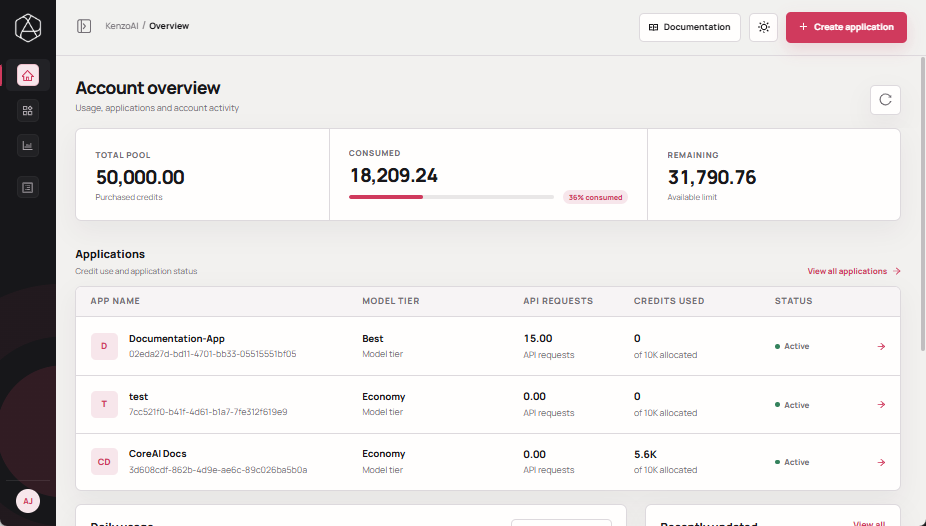
-
Click Create application.
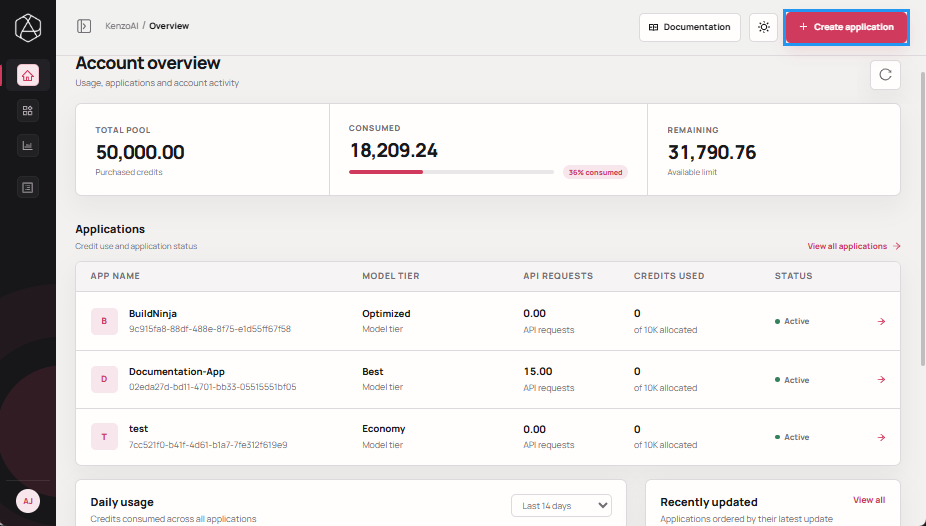
-
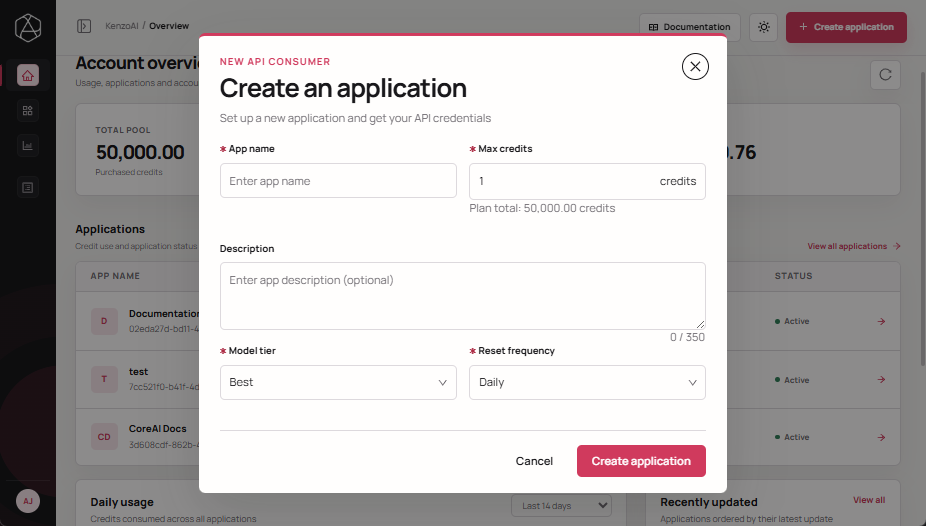
In the Create an application dialog, provide the following details:
- App name: A human-readable name to identify the application or integration (for example, BuildNinja Prod, CI Insights Service). This name is used for reference in overview, logs, and usage analytics.
- Max credits: The maximum number of credits the application is allowed to consume within a reset cycle.
- Description: A brief summary of the app’s purpose or use case. Descriptions help distinguish between multiple apps and provide context for usage and access reviews.
- Model tier: Select the AI capability tier used by the application.
- Economy: Designed for lightweight analysis and cost efficiency.
- Optimized: A balance of performance, accuracy, and cost.
- Best: Highest accuracy and reasoning depth for complex analysis.
- Reset frequency: Defines how often the application's Consumed Credits are reset, allowing the application to consume credits again up to its configured Max Credits limit.
- Manual: Consumed credits are reset only when you manually perform the Reset Consumption action. For more information, see Reset ConsumptionResetting consumption clears the recorded consumed credits for an application without deleting the application or changing its credentials..
- Daily: Resets every 24 hours.
- Weekly: Resets once per week.
- Monthly: Resets once per month.
 important
Resetting the consumed credits only resets the application's consumption quota based on the configured reset frequency. It does not restore or refund credits already deducted from the account-level credit pool or increase the application's Max Credits limit.
-
Click Create application to create the application.
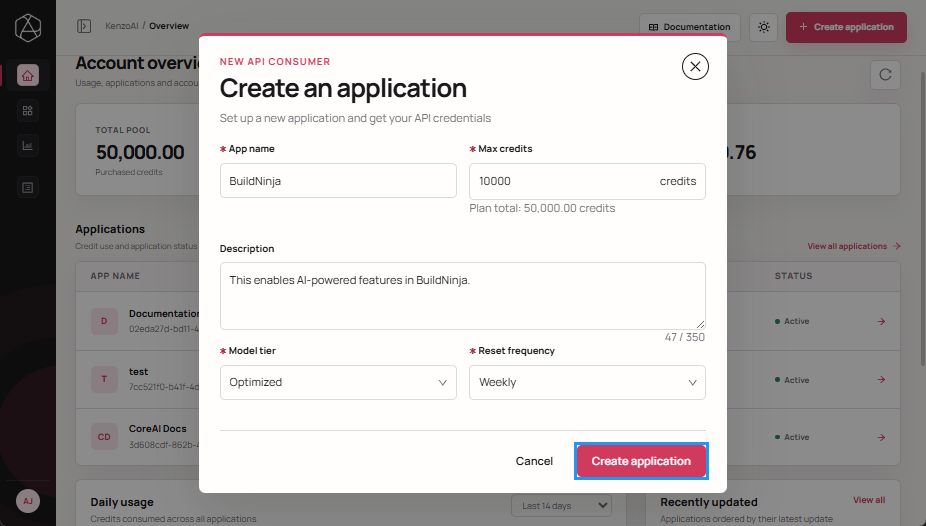
-
After the application is created, the confirmation screen displays the App Key and App Secret. The App Secret is shown only once.
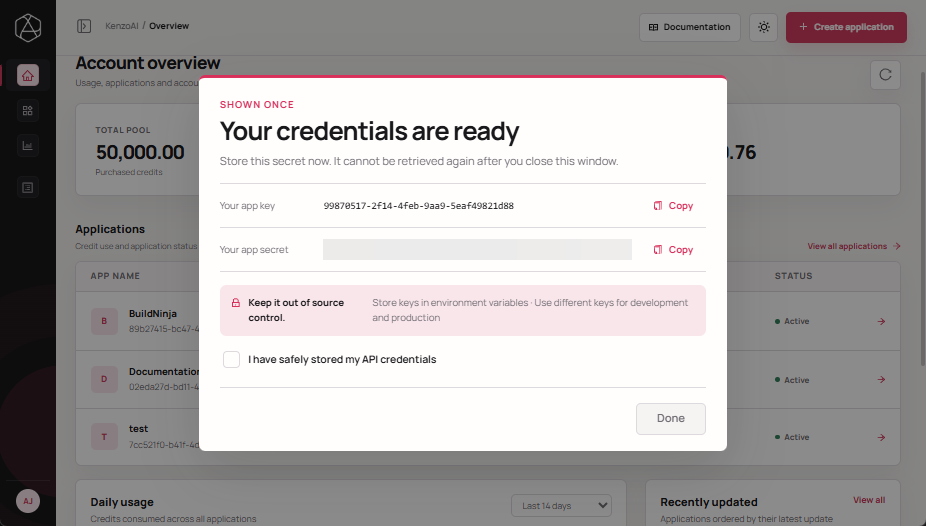 Store the App Secret securely, as it cannot be retrieved later. However, you can regenerate it from the Application Overview. For more information, see Regenerate Application SecretEach application uses an App Secret to authenticate requests to the platform. Regenerating the App Secret replaces the existing credential and immediately invalidates the previous one..
-
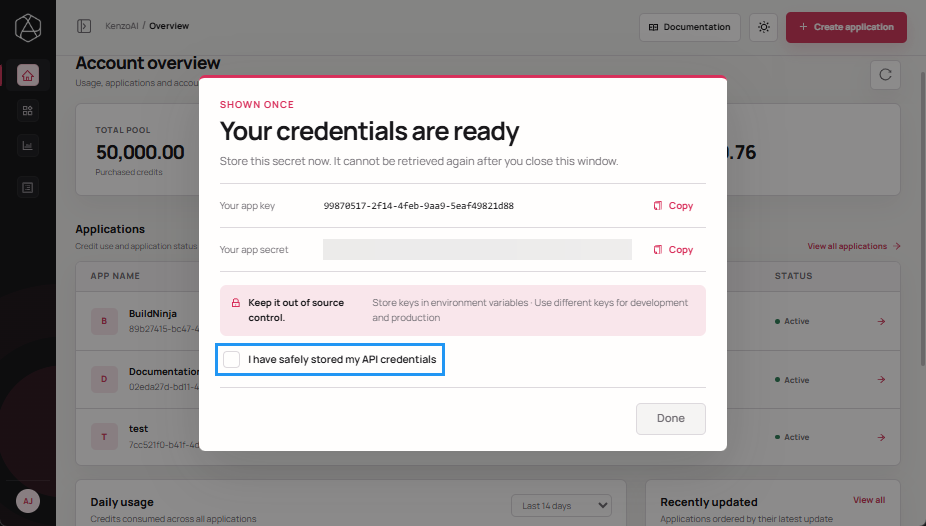
Select the acknowledgment checkbox.
-
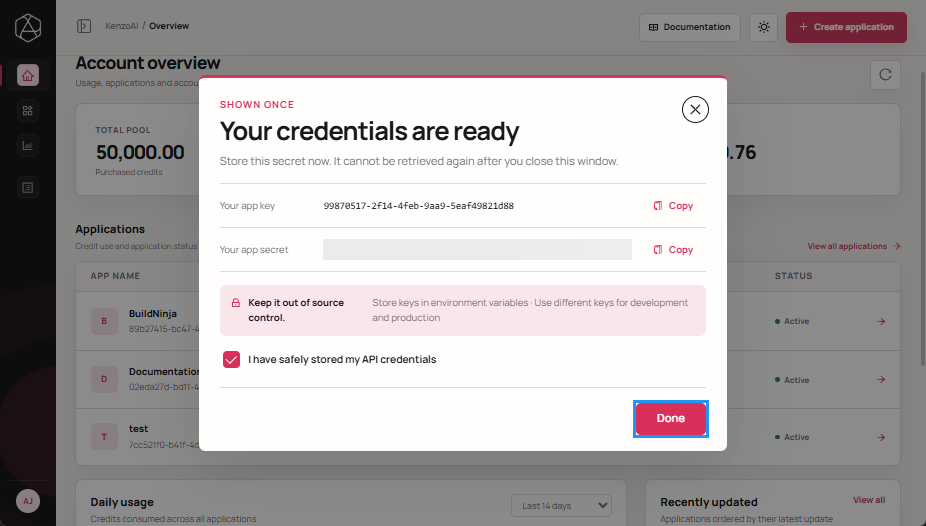
Click Done to close the confirmation dialog.
Next Steps
With available credits and an App Key and App Secret in hand, you're ready to put kenzoAI to work:
- Integrate kenzoAI with BuildNinjaYou can integrate kenzoAI with BuildNinja to deliver intelligent build analysis, predictive insights, and actionable recommendations directly within your CI/CD workflows. The integration applies at the build level. to enable AI-powered features such as Analyze Logs, Explain Config, and AI Analysis within your build pipelines.
- Explore the kenzoAI Developer Portal OverviewThe kenzoAI Developer Portal Overview provides a centralized view of your account's credit usage and application activity. to monitor usage and credit consumption.
- Manage ApplicationsApplications in kenzoAI represent isolated units of AI usage. Each application maintains its own authentication credentials, usage metrics, and configurable limits. to edit credit limits, reset frequency, or regenerate credentials as your usage evolves.